
Banking
Import a statement
A bank or card statement file is read into Qetaab, checked for duplicates, and waiting for your review — nothing posts until you decide.
- Who this is for
- Owner, admin or bookkeeper.
- Before you start
- A statement file: CSV, OFX/QFX, or a PDF statement for PDF reading in the hosted app.
- A bank or credit-card account in the Chart of Accounts to receive the lines.
- Availability
- Importing a QBO, QFX, OFX or CSV statement is free on every plan, with no limit, in the hosted app and the local build, without any live bank connection. Reading a PDF statement uses AI, and live bank feeds through Plaid use the Connect your bank option: both are hosted services on the paid plans.
Steps
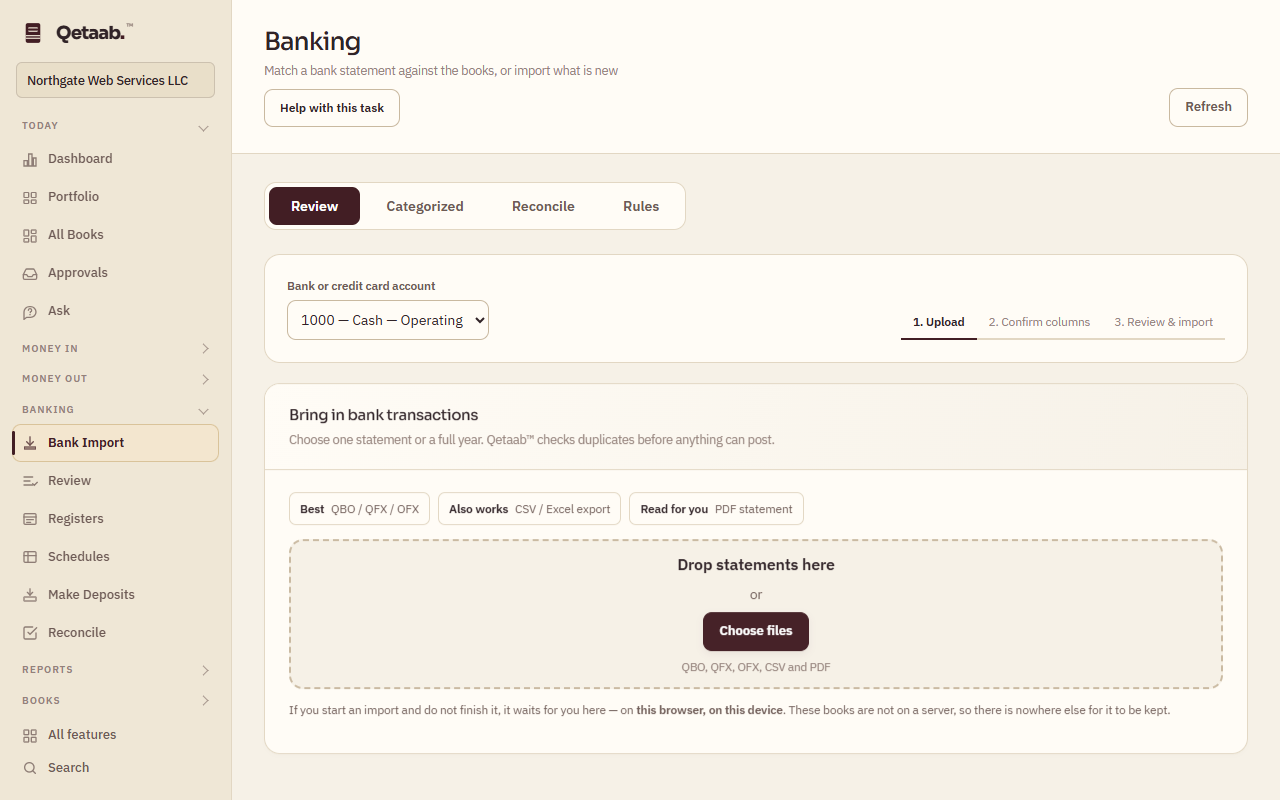
- Open Bank Import (under Banking) and stay on the Review tab. Choose the Bank or credit card account the statement belongs to at the top; the steps 1. Upload, 2. Confirm columns and 3. Review & import show where you are.
- Under Bring in bank transactions drop the file, or choose Choose files. QBO, QFX, OFX, CSV and PDF statements are accepted, and you can select one statement or a full year of files at once. Nothing posts to your books here.
- For a CSV, Confirm the columns: Date column and Date format, Description column, and either one Amount column with its sign or separate Debit (money out) and Credit (money in) columns. Tick The first row is a header if it is. Save this setup for next time to reuse it.
- Choose Review transactions. The summary reads how many rows were read, how many are for review, need a category, were filled by rules, matched something already in the books, or were blocked as duplicates.
- An unfinished import is kept: the next time you open Bank Import you can Continue this import or Discard it.
What you should see
The review list shows every new line with its date, description and amount, ready for categorising, matching or excluding.
If it goes wrong
If a CSV reads with the wrong dates or signs, choose Change columns and pick the right Date format or Amount is setting. If every row is blocked as a duplicate, the file was already imported for this account; open the Categorized tab to see it.
What it looks like
Related guides
Steps checked in the app on 2026-09-21. This guide describes how the software works; it is not accounting, tax or legal advice. Need a hand? Email support@qetaab.com.
All guides →