
Banking
Reconcile a bank account
The books and the bank statement agree to the cent for the statement period, and the reconciliation is recorded with a report.
- Who this is for
- Owner, admin or bookkeeper.
- Before you start
- The bank statement with its ending date and ending balance.
- The account marked as cash in the Chart of Accounts.
- Availability
- Available in the hosted app and the local build.
Steps
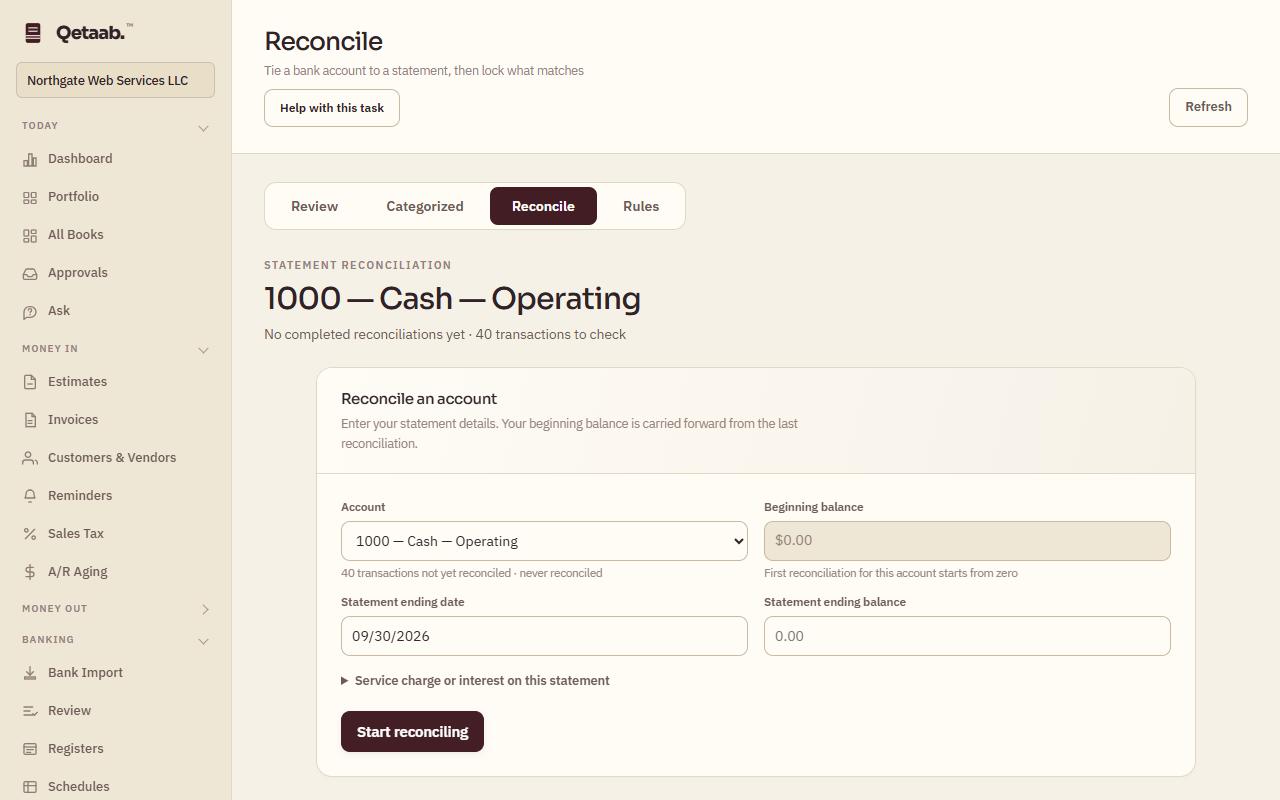
- Open Reconcile (under Banking; it is the Reconcile tab of the Banking screen). Under Reconcile an account choose the Account — the Beginning balance carries forward from the last reconciliation — and enter the Statement ending date and the Statement ending balance printed on the statement. Open Service charge or interest on this statement to add either with its account. Choose Start reconciling.
- Tick each transaction that appears on the statement. Cleared balance and Difference update as you go; Find and Show narrow the list, and Untick all starts over.
- Choose Save for later at any point — your ticks are kept — and come back to finish.
- Choose Finish now only when Difference is 0.00. The button stays disabled until the statement and the ticked transactions agree.
- Reconciliation history keeps each finished statement with a Report (cleared payments, cleared deposits and outstanding items) and Reopen, which asks why and applies only to the most recent reconciliation on the account.
What you should see
The account shows Reconciliation recorded through the statement date on the Month-end checklist and the dashboard’s Bank account status.
If it goes wrong
A difference that equals one transaction usually means a line is missing from the books or dated after the statement — import the statement first, or record the item. A balanced trial balance does not replace reconciliation.
What it looks like
Related guides
Steps checked in the app on 2026-09-21. This guide describes how the software works; it is not accounting, tax or legal advice. Need a hand? Email support@qetaab.com.
All guides →