
Invoices & bills
Create and review invoices
An invoice is posted to the books, its PDF is ready, and its payment status follows the books rather than a status you set by hand.
- Who this is for
- Owner, admin or bookkeeper.
- Before you start
- The customer exists, or you are ready to create them from the invoice.
- Sales tax rates, if you collect tax.
- Availability
- Available in the hosted app and the local build. Emailing an invoice depends on the email service being configured; online payment collection is not available during the pilot.
Steps
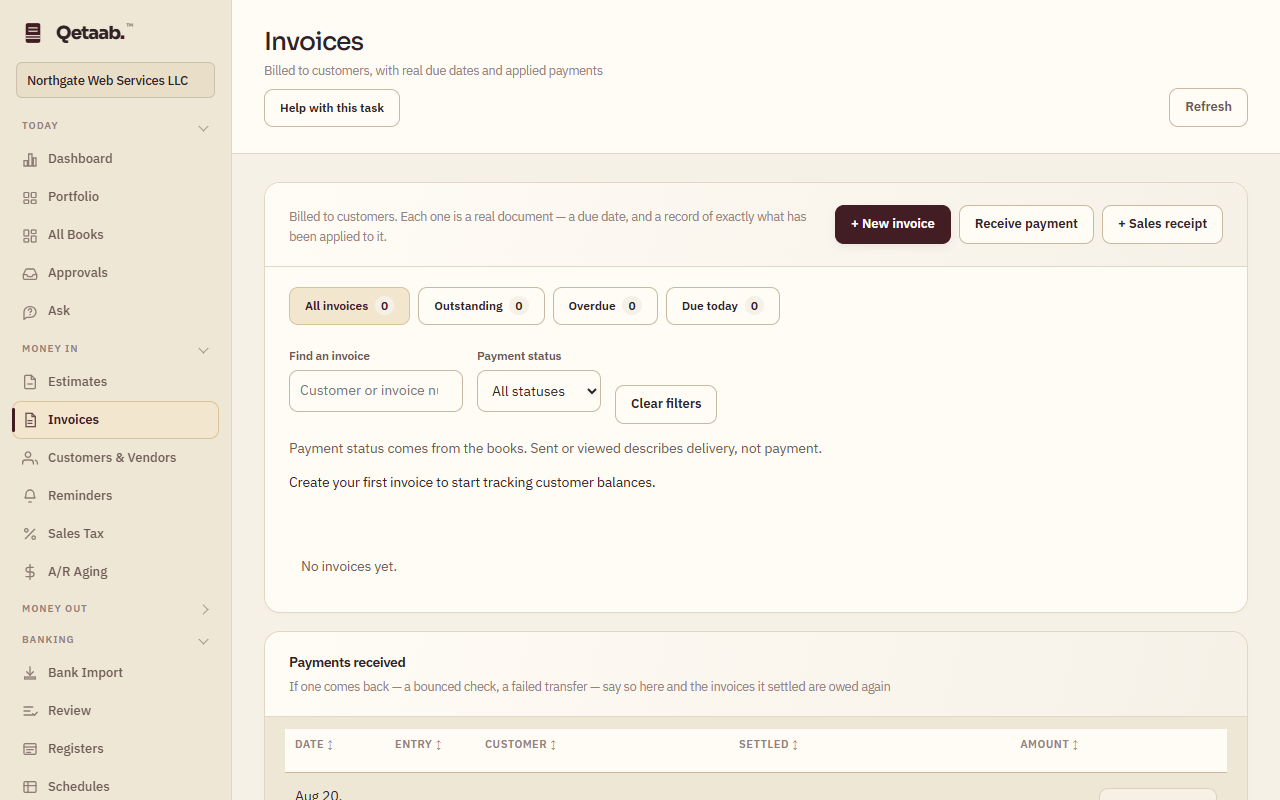
- Open Invoices (under Money in) and choose + New invoice. Choose + Sales receipt instead for a sale that was paid at the time — it is the same form with Money went into in place of a due date.
- Type the Customer; an unknown name offers to create the customer. Set the Date and Due date (it defaults from the customer’s terms), the Sales tax rate and, for a foreign-currency invoice, the Currency and Exchange rate.
- Add lines with + Add line: an Item or a revenue account, Description, Qty, Amount and whether the line is taxable. Choose Save invoice (or Record the sale).
- Use the filter buttons — All invoices, Outstanding, Overdue, Due today — and Payment status to find invoices. Find an invoice searches by customer or number.
- Each row offers Preview, Download PDF, Send, Link and Remind (for open invoices). Payment status comes from the books; Sent or viewed describes delivery, not payment.
What you should see
The invoice appears in the list as Open with its balance, the customer’s balance rises on A/R Aging, and revenue shows on the Income Statement for the invoice date.
If it goes wrong
If saving is refused, the error names the line or field: usually a line without an account or a date inside a locked period. A posted invoice is not edited; correct it with a reversal from Journal Entries and raise a new one.
What it looks like
Related guides
Steps checked in the app on 2026-09-21. This guide describes how the software works; it is not accounting, tax or legal advice. Need a hand? Email support@qetaab.com.
All guides →