
Getting started
Read your dashboard
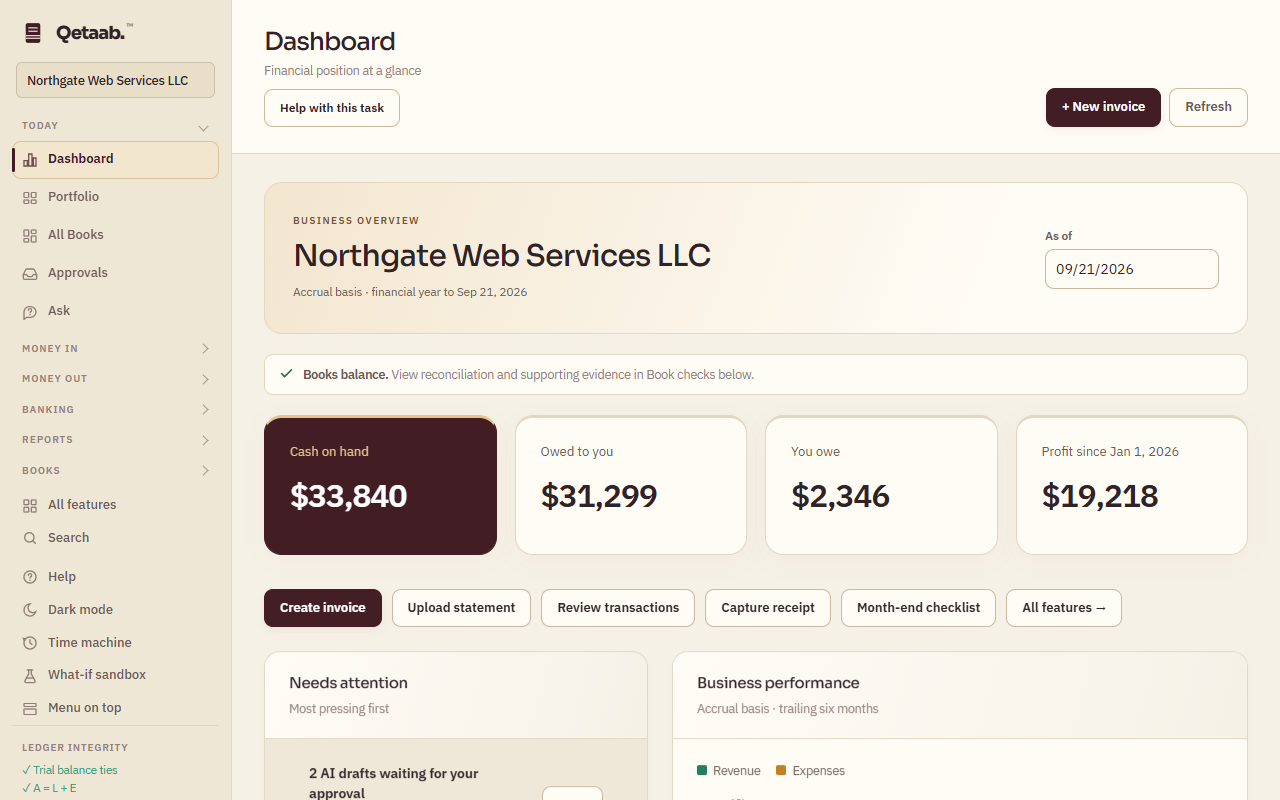
You can read the position of the business at a date, see what needs attention, and jump to the report behind any figure.
- Who this is for
- Anyone with access to the books, including viewers.
- Before you start
- At least one posted entry, or the sample books.
- Availability
- Available in the hosted app and the local build. Ask your books and AI Studio depend on the AI service being configured for your account.
Steps
- Choose an As of date at the top of the Dashboard to review the position at that date.
- Cash, amounts owed and profit link to supporting reports. Under Explore your reports, Profit & loss, Balance sheet, Receivables and Payables open the full report.
- Use Needs attention and Coming due for pending work; each row has an Open button. Bank account status shows each bank account with a Reconcile shortcut.
- Why you can trust these numbers lists the recorded checks. Show me opens the screen that proves each one; Print certificate and Lender packet print them.
- Books balance confirms the arithmetic; it does not prove every transaction is correct or reconciled.
What you should see
You know what is waiting, what is due, and where each number comes from.
If it goes wrong
If a figure looks stale, choose Refresh in the toolbar: it pulls anything posted elsewhere and recomputes from the journal. A Create invoice button that is greyed out with “read-only access” means your role is viewer.
What it looks like
Related guides
Steps checked in the app on 2026-09-21. This guide describes how the software works; it is not accounting, tax or legal advice. Need a hand? Email support@qetaab.com.
All guides →