
Reports
Run, save and export reports
You can find the report you need, keep a setup to run again, and take any report out as Excel, CSV or PDF.
- Who this is for
- Anyone with access to the books, including viewers.
- Before you start
- Posted entries for the period.
- Availability
- Available in the hosted app and the local build.
Steps
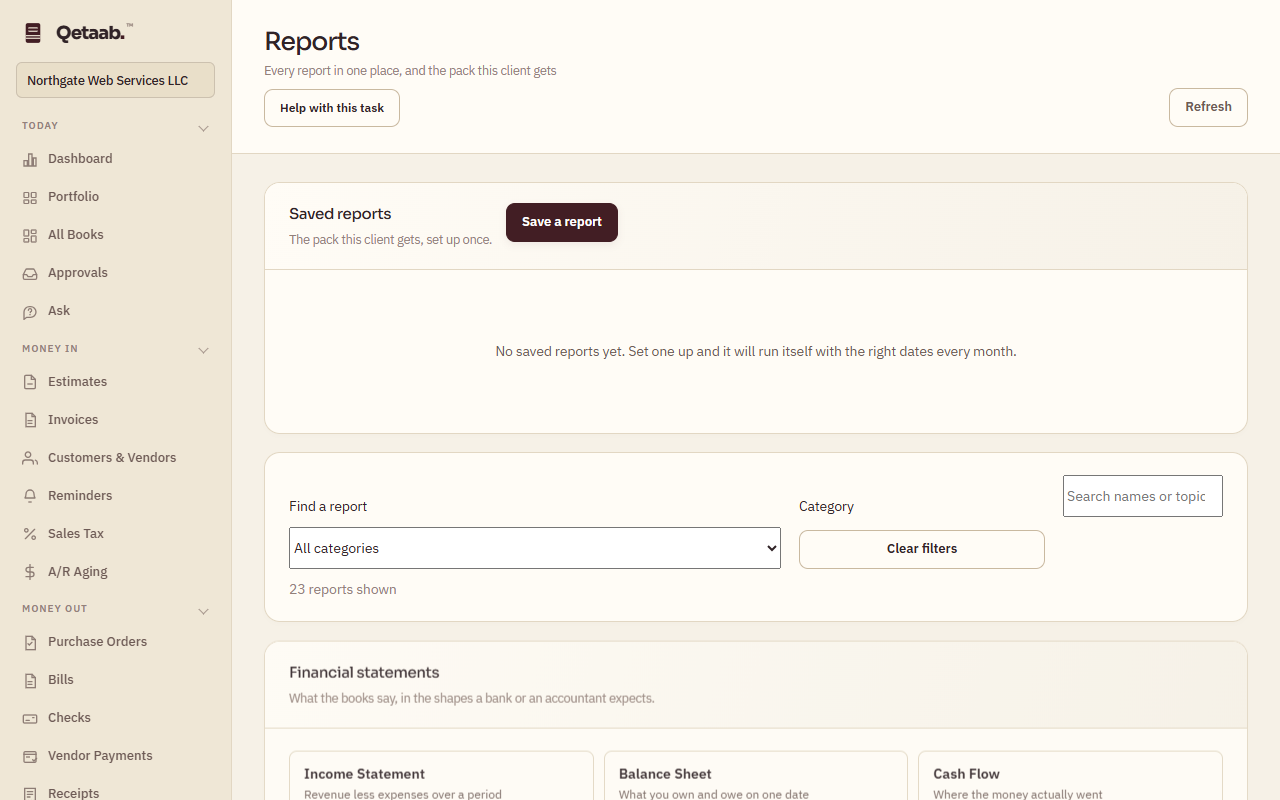
- Open Reports (under Reports) for the catalogue: financial statements, aging, sales and expense summaries, the General Ledger and Journal, the Activity Log, Sales Tax, 1099s, the Check Register and more. Under Find a report choose a Category or type in Search names or topic; Clear filters resets the list.
- On a report, set the dates and Basis. The Income Statement offers Totals, Compare periods and By month columns; the Balance Sheet compares two dates.
- Choose Save a report to keep a setup: Name, Report, Which period, Basis, Filter to and Columns. Saved reports keep settings only — the figures are re-read from the journal every time it runs.
- In the toolbar, choose Excel, CSV or PDF to export the report on screen.
- A saved report offers Run, Excel, Edit and Forget.
What you should see
The report shows the period and basis you chose, and the export downloads with the report name and date.
If it goes wrong
If an export does not download, check the browser did not block the download. A saved report that shows different figures than last time is expected: it reads the books as they stand now.
What it looks like
Related guides
Steps checked in the app on 2026-09-21. This guide describes how the software works; it is not accounting, tax or legal advice. Need a hand? Email support@qetaab.com.
All guides →