
Connect Gemini to Qetaab
Gemini answers questions from the companies you choose and proposes changes. Nothing reaches your books until a person approves it in Qetaab.
- Who this is for
- Owner, admin or bookkeeper with a Qetaab sign-in. To let the assistant propose changes, your role must allow changing the books.
- Before you start
- A Gemini account that can add a custom connection. For personal Google accounts, age 18 or over, in the US, in English. Google ties this to its Pro and Ultra plans.
- A Qetaab sign-in for the business. The connection is on every Qetaab plan, Free included, because Gemini runs on your own subscription.
- Availability
- Not switched on yet: this guide is ready for when Qetaab switches it on, and until then the AI assistants screen says Coming soon. Hosted app only, on every plan, Free included. The Qetaab steps and pictures were walked with fictional books; Gemini’s side has not yet been tried with a real Gemini account, and its menus may change.
Steps
- In Qetaab, open Settings & Close (under Books), choose Integrations, then choose Open AI assistants on the AI assistants card.
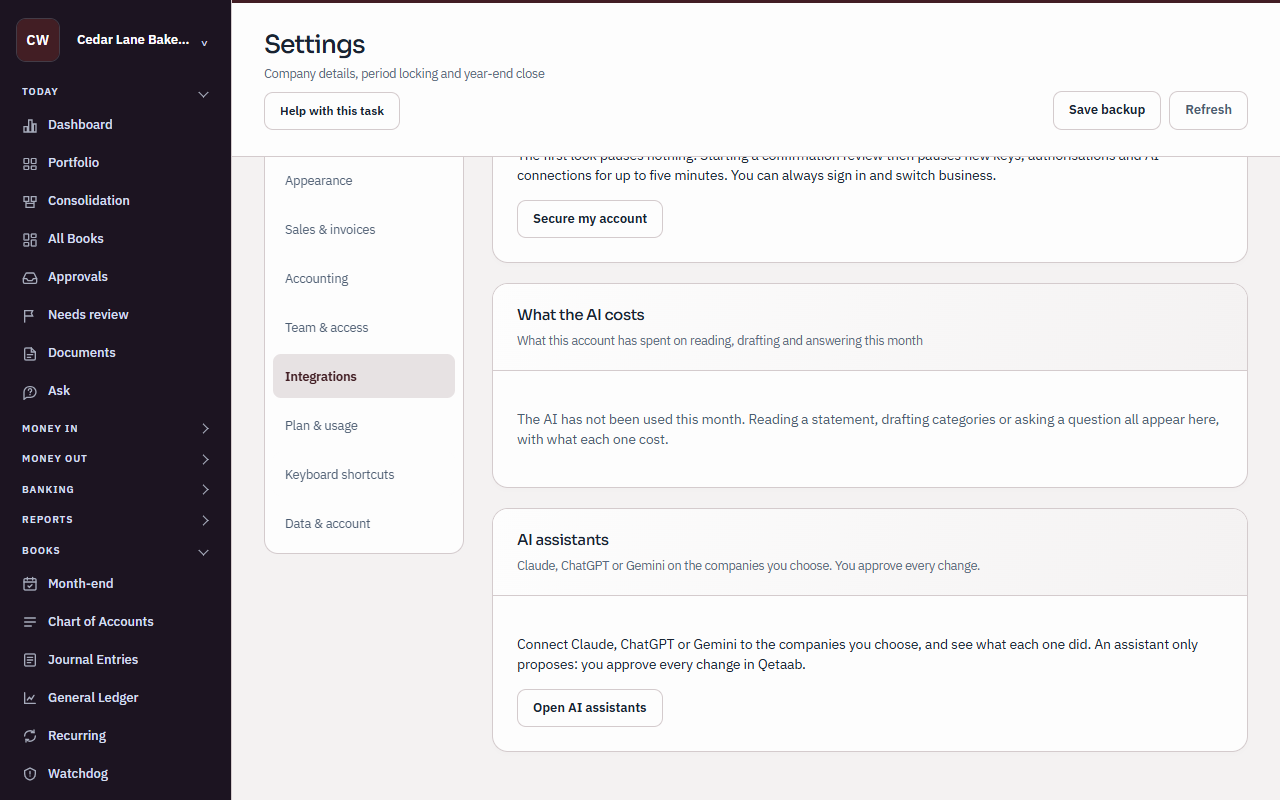
Settings & Close, Integrations section, in fictional sample books. - Under Connect an assistant, choose Gemini, then choose Copy beside Connection address. Your assistant may call this the MCP server URL. The address alone gives nobody access.
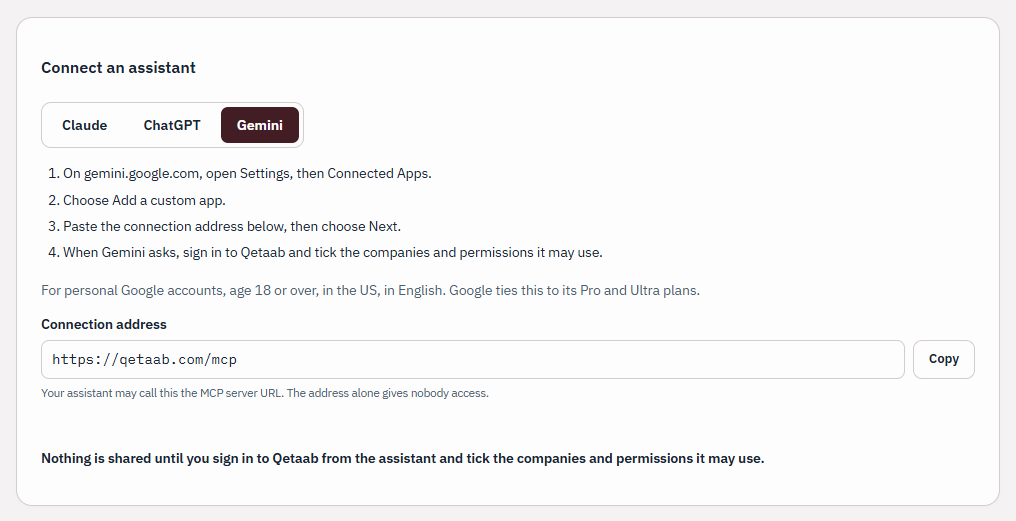
The Gemini tab under Connect an assistant, with the connection address. - Then follow the steps the AI assistants screen lists for Gemini: “On gemini.google.com, open Settings, then Connected Apps.” “Choose Add a custom app.” “Paste the connection address below, then choose Next.” These are Gemini’s own screens, so they are not pictured here.
- When Gemini asks, sign in to Qetaab and tick the companies and permissions it may use. Qetaab asks “Connect Gemini to your books?” and nothing is ticked for you. Tick only the companies it may use, what it may read (Financial reports, Book records) and what it may propose (for example Propose invoices), then choose Connect, or Cancel to stop.
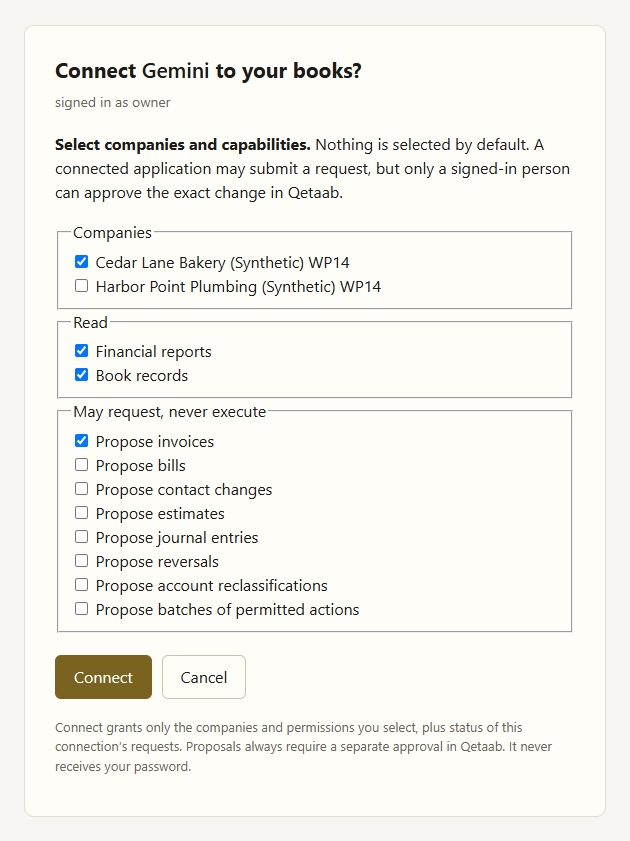
The page Gemini opens in Qetaab, with one company and three permissions ticked. - Ask Gemini in your own words. It reads only the companies and things you ticked: “What is Cedar Lane Bakery's profit and loss for September 2026?”, “Who owes us money, and how overdue are they?”, “Show me the trial balance as of today.” or “Find last month's entries that mention flour.” It can only propose changes — invoices, bills, contacts, estimates, journal entries, reversals and reclassifications: “Propose an invoice to Maple Street Cafe for 120.00 of catering, dated today.” Ask “Can you email that invoice?” and it says it is not allowed and that you send it from Qetaab. An assistant can never send email or messages, take or make payments, run your payroll, file anything, close a period, or change who has access.
- Back on the AI assistants screen in Qetaab, the proposal is under Waiting for you. Choose Show the exact change and check the company, customer, date, total and what posts to your books. Choose Create and post invoice to approve it, or Refuse. Each proposal is approved or refused by a person signed in to Qetaab, and it lapses after 15 minutes if nobody decides.
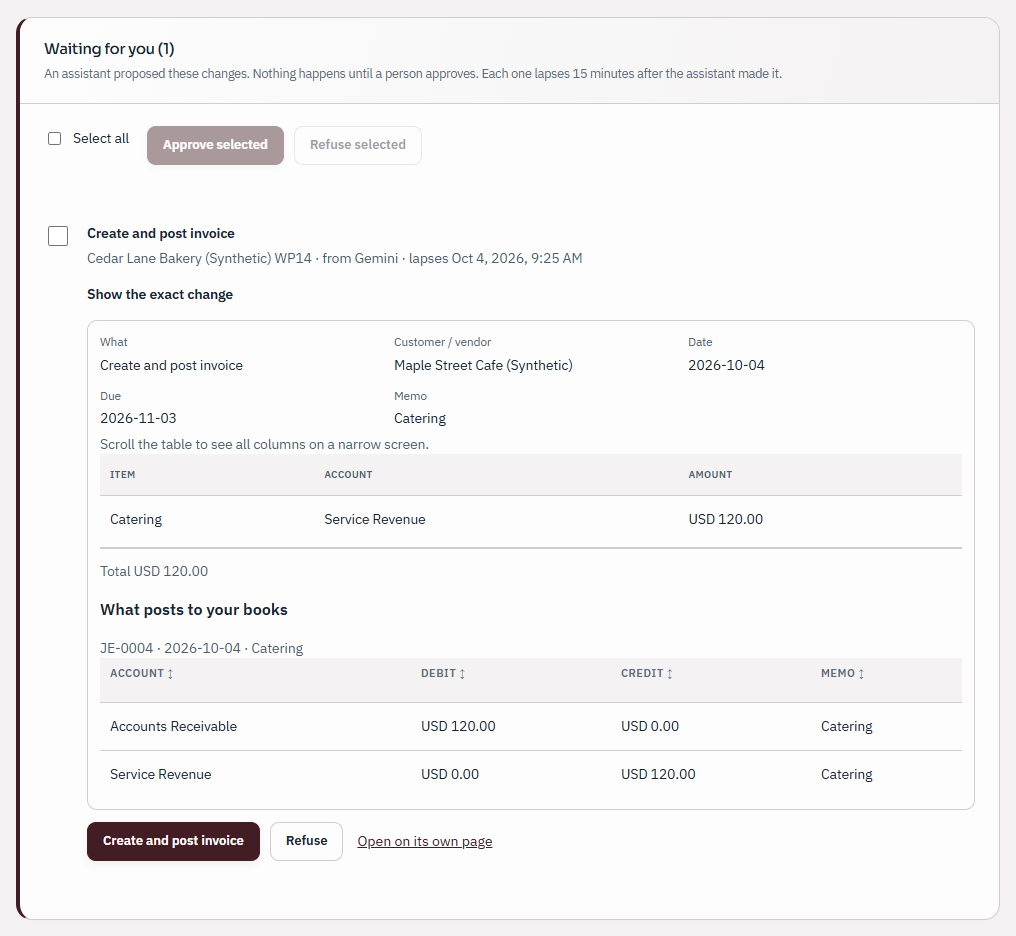
An invoice Gemini proposed, waiting for a person, with the exact change open. - Under Connected assistants, Gemini’s card shows what it may do and, under What it did, each question it asked, for which company and when.
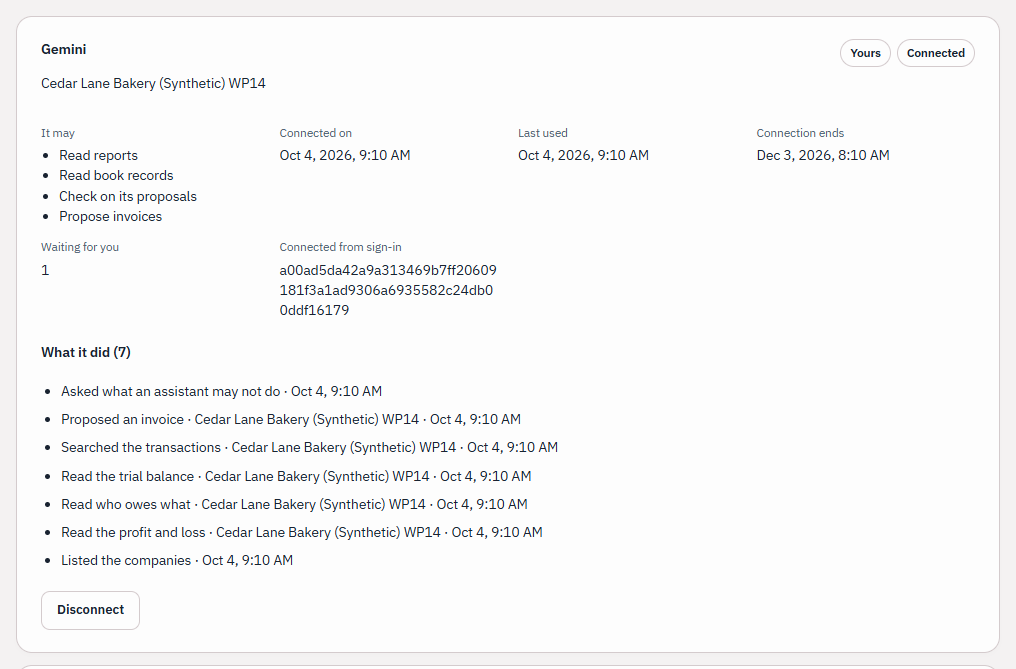
Gemini’s card with What it did open. - To stop it, choose Disconnect on its card, then Disconnect again (or Keep connected). It stops at its next request, and anything it left waiting is cancelled. Entries you approved stay in your books. Remove Qetaab in Gemini too.
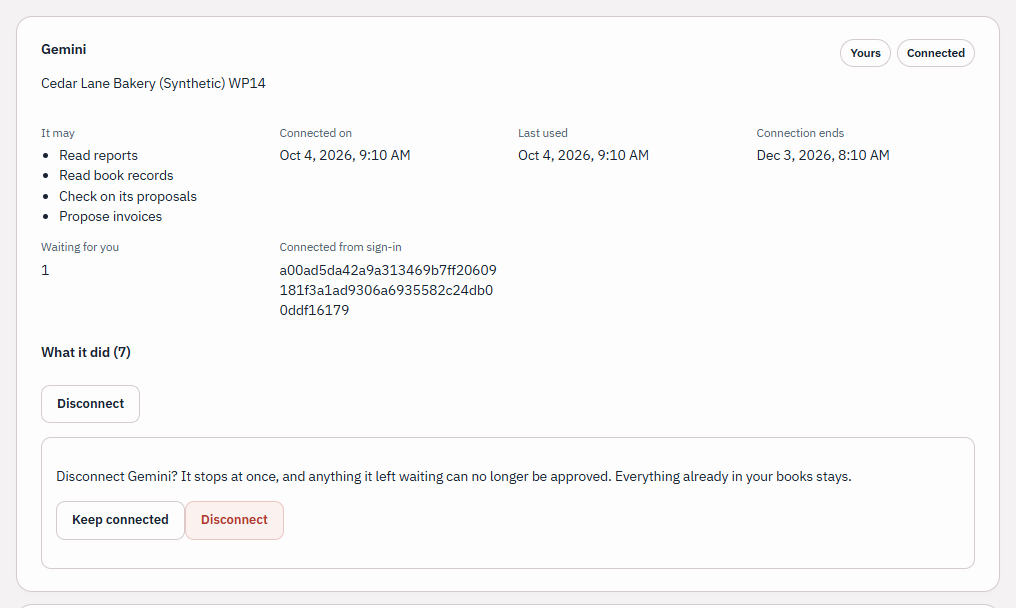
Disconnect asks before it acts.
What you should see
Gemini’s card under Connected assistants reads Connected, with only the companies and permissions you ticked. An invoice you approved is in your books like any other; a refused or lapsed proposal changes nothing.
If it goes wrong
If Gemini is held back for asking too much, wait a minute: an assistant may ask 60 questions a minute. If it cannot propose more, 20 of its proposals are already waiting: approve or refuse some, or let them lapse. A proposal for another company is approved with that company open; you can refuse it from anywhere. If the AI assistants screen says your sign-in has expired, sign in again before deciding. After you disconnect, Gemini must be connected again from Gemini, and what was waiting does not come back.
Related guides
Steps checked in the app on 2026-10-04. This guide describes how the software works; it is not accounting, tax or legal advice. Need a hand? Email support@qetaab.com.
All guides →